



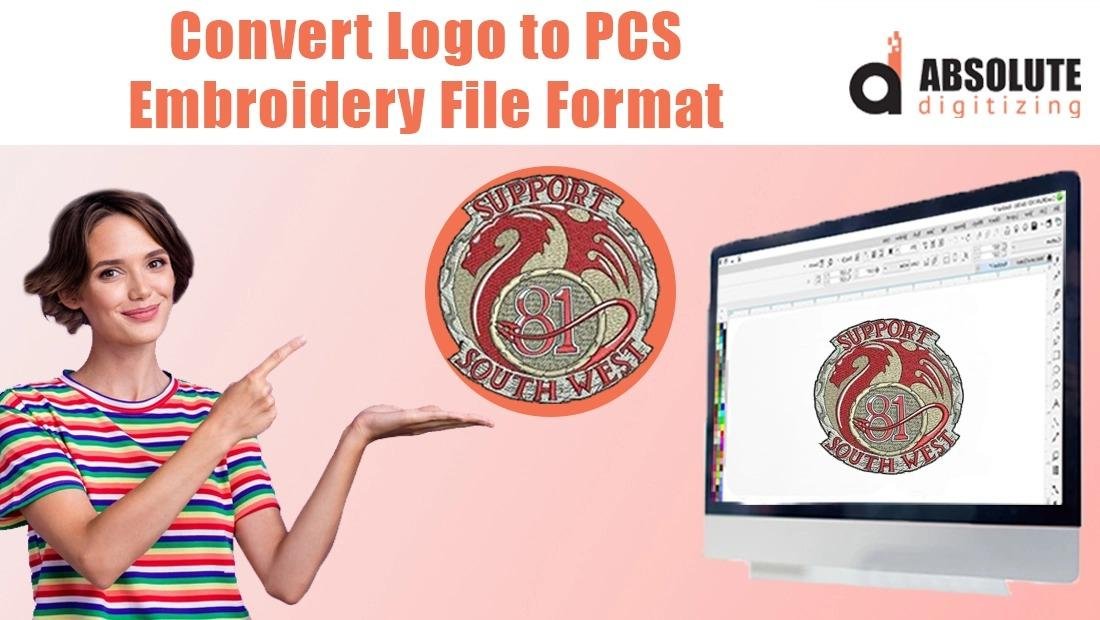
That sleek, professional logo you have saved on your computer is more than just a digital file. It's an identity, a brand, a mark of quality. Imagine seeing it not just on a screen or a business card, but proudly stitched onto company uniforms, branded caps, or gift towels. To make that leap from the digital world to the world of thread and fabric, your logo needs to speak your embroidery machine's language. For Brother and Babylock machines, that language is often the PCS format. While online converters exist, using dedicated digitizing software gives you unparalleled control and quality. Let's walk through how to professionally convert a logo to PCS embroidery format using the tools the pros use.
Why Software Beats a Quick Online Conversion
You might be tempted to use an instant online converter. For a super simple, one-color shape, it might get you a passable file. But for a professional logo—the cornerstone of your brand—you need precision. Online tools use algorithms that often misinterpret details, create excessive stitches, and produce files that can lead to puckered fabric and broken threads. Professional digitizing software, on the other hand, puts you in the designer's seat. You control every stitch type, the sewing order, and how the design interacts with the fabric. This results in a cleaner stitch-out, better durability, and a logo that looks professionally made, not hastily converted.
Prepping Your Logo: The Critical First Step
Before you even open your software, success depends on your starting point. You can't create a masterpiece from a blurry foundation. Locate the highest-quality version of your logo you have. The ideal file is a vector format like .AI, .EPS, or .SVG. These are "infinitely scalable," meaning you can resize them without any loss of quality, and they have perfectly clean edges. If you only have a raster file (like a JPG or PNG), ensure it's high-resolution—at least 1000 pixels on its longest side—and that the edges are crisp. A fuzzy, low-res logo will force the software to guess at the boundaries, leading to a poor digitizing outcome.
Choosing Your Software Platform
Several powerful software options can create PCS files, each with its own strengths. Your choice often depends on your budget and commitment level.
- Wilcom Hatch is widely considered industry-standard. Its digitizing tools are incredibly powerful and precise, offering deep control for complex logos. It has a steeper learning curve but is a top-tier investment for serious users.
- Brother's PE-Design is a natural choice for Brother machine owners. It's user-friendly, integrates well with Brother ecosystems, and is perfectly capable of handling most logo conversion projects.
- Embrilliance is beloved for its modular, pay-for-what-you-need approach and its intuitive interface. It's fantastic for lettering and simpler logo work, making it a great entry point into professional digitizing.
The Core Digitizing Process: A Step-by-Step Guide
Once your logo is prepped and your software is open, you'll follow a logical sequence to build your embroidery file.
- Import and Trace: Start by importing your logo file as a background image or template. Use the software's drawing tools (like the Bezier curve tool) to manually trace the key outlines of your logo. This creates clean vector paths that will become the borders for your stitches. Don't rely on auto-trace for logos; manual tracing ensures accuracy.
- Assign Stitch Types: This is where the translation happens. For each shape in your logo, decide on a stitch type. Use satin stitches for text and narrow borders—they create a smooth, shiny column of thread. Use fill stitches for larger solid areas. For very fine details, you might use running stitches. Your software’s manual will have guides on selecting and editing these.
- Set the Stitch Sequence: The machine needs to know what to sew first. A logical order minimizes jumps (where the needle moves without stitching) and trims. You typically stitch lighter colors and underlay first, then move to darker colors and top details. Manually controlling this sequence in your software prevents a chaotic, inefficient sewing process.
- Add Underlay Stitches: This is the secret to a flat, professional finish. Underlay is a series of foundational stitches laid down before the top stitching. It stabilizes the fabric, prevents puckering, and provides a base for the top stitches to lie on neatly. Your software will have presets and tools for adding edge-walk, center-walk, or mesh underlay depending on the shape.
- Adjust for Fabric: Consider what you'll stitch the logo onto. A dense fill stitch suitable for a cap might cause puckering on a polo shirt. Most software allows you to adjust stitch density and pull compensation based on your target fabric.
Exporting to PCS and The Crucial Test Stitch
With your design perfected on screen, you'll go to "Save As" or "Export." Select the PCS format from the list. Some software may offer PCS versions (like PCS+); for maximum compatibility, the standard PCS is usually best. Save it with a clear name.
Now, here is the step you must never skip: the test stitch. Hoop a piece of fabric similar to your final project. Load the PCS file and stitch it out. Watch for thread breaks, check that all details are clear, and feel the fabric for puckering. This physical sample is your quality control. It might reveal that a satin column is too narrow or a fill is too dense, giving you a chance to go back to the software and refine before stitching your final, branded items.
Conclusion: Elevating Your Brand with Precision
Converting your logo to PCS embroidery format with professional software is an investment in your brand's image. It transforms a generic conversion into a customized, optimized design engineered for embroidery. While it requires an initial investment of time to learn the software fundamentals, the payoff is immense: durable, sharp, and professional-looking embroidered logos that do justice to your brand's identity. By carefully preparing your artwork, methodically working through the digitizing steps, and religiously testing your files, you gain complete control over how your logo is presented in the physical world. It’s the definitive way to convert logo to PCS embroidery format with results that truly stand out.

 English
 Arabic
 French
 Spanish
 Portuguese
 Deutsch
 Turkish
 Dutch
Dutch
 Russian
 Romaian
 Portuguese (Brazil)
 Greek
Greek